

Integrate Clarity with GA4

Connect session recording IDs to your analytics data. Find the recordings that explain metric changes.

Download GTM Container

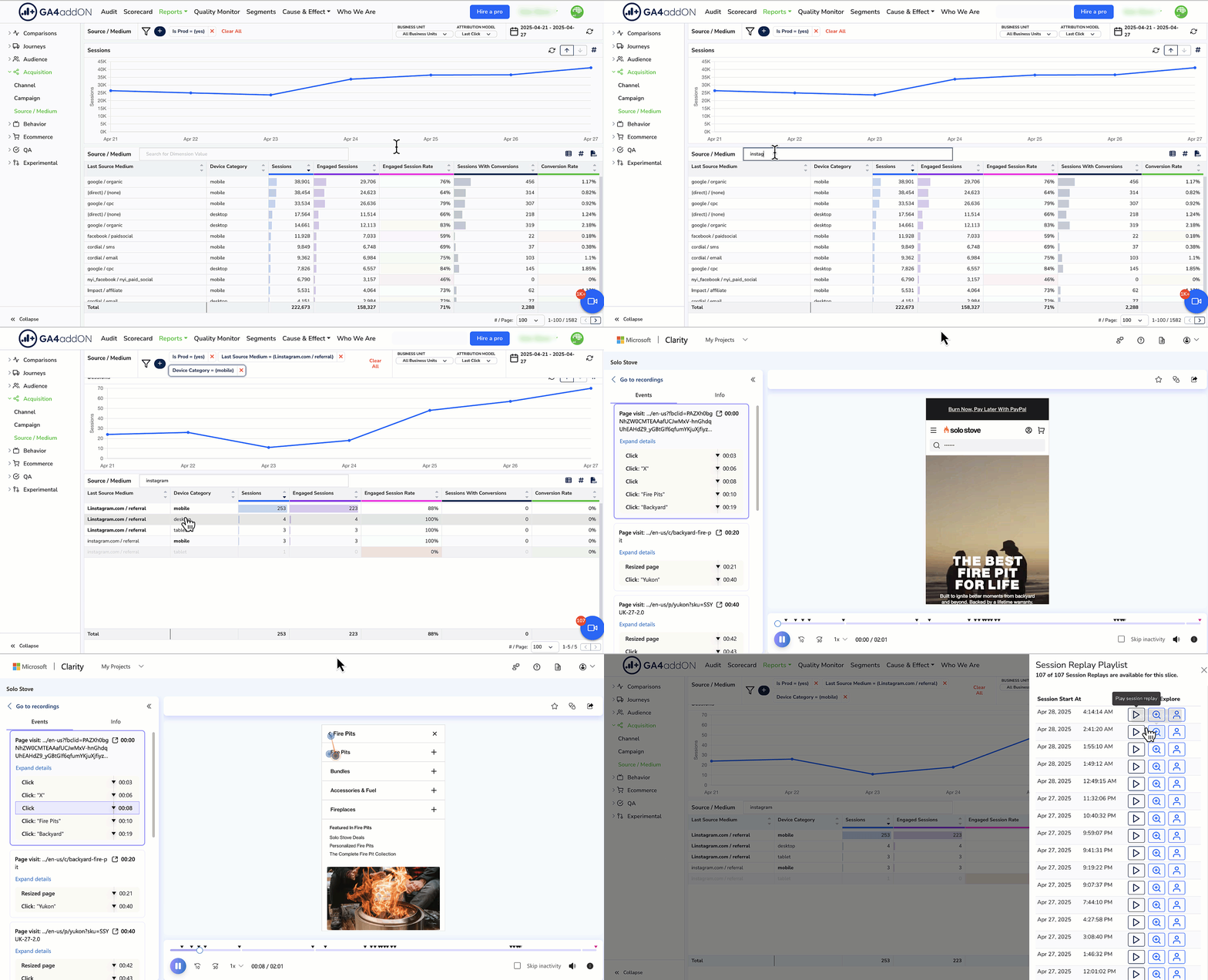
What This Integration Does

This GTM container sends Clarity's session ID and user ID to Google Analytics 4 as event parameters. This lets you:

  • Find specific recordings — Search GA4 for a segment, get the Clarity session IDs, watch those exact recordings
  • Connect metrics to evidence — When conversion drops, find the recordings that show why
  • Build audiences — Create GA4 audiences based on behavior, then watch their sessions in Clarity

What's Included

The GTM container includes:

  • Microsoft Clarity tag — Installs Clarity on all pages
  • Session ID capture — Extracts Clarity's session and user IDs from cookies
  • GA4 event — Sends clarity_session_started event with session IDs to GA4
  • Utility functions — Cookie handling for reliable ID capture
Setup Instructions

Prerequisites

  • Google Tag Manager container on your site
  • Microsoft Clarity account (create free account)
  • GA4 property with Measurement ID

Step 1: Download the GTM Container

Download GTM-clarity-ga4-integration.json


Step 2: Import into GTM

  1. Open Google Tag Manager
  2. Go to AdminImport Container
  3. Choose the downloaded JSON file
  4. Select MergeRename conflicting tags
  5. Click Confirm

Step 3: Configure Your IDs

After import, update these variables:

1. Clarity Project ID:

  • Go to VariablesConstant - Microsoft Clarity Project Id
  • Replace FILL ME IN with your Clarity project ID
  • Find this in your Clarity URL: clarity.microsoft.com/projects/view/YOUR_PROJECT_ID

2. GA4 Measurement ID:

  • Go to TagsGA4 - clarity_session_started
  • Replace G-111111111 with your GA4 Measurement ID
  • Find this in GA4: AdminData StreamsWeb stream details

Step 4: Publish

  1. Click Submit in GTM
  2. Add a version name (e.g., "Added Clarity + GA4 integration")
  3. Click Publish

Step 5: Verify

After publishing:

  1. Visit your site and navigate a few pages
  2. In GA4, go to ReportsRealtime
  3. Look for clarity_session_started events
  4. Check that clarity_session_id and clarity_user_id parameters are populated

How to Use the Integration

Finding Recordings for Specific Users

  1. In GA4 Explore, create a segment (e.g., "users who abandoned checkout")
  2. Add clarity_session_id as a dimension
  3. Export the session IDs
  4. In Clarity, search by session ID to watch those exact recordings

Investigating Metric Changes

  1. Notice conversion dropped on mobile Chrome
  2. Create GA4 segment: mobile + Chrome + checkout page
  3. Get the clarity_session_id values
  4. Watch those sessions in Clarity to see what went wrong

With Overlook (Automated)

Overlook automates this entire process. Ask "why did mobile conversion drop?" and it will:

  • Identify the affected segments
  • Find the relevant session IDs
  • Surface the recordings that explain the issue

See how AI connects metrics to recordings

AI Ecommerce Analyst
Connects the Dots

Overlook is the only AI analytics tool that automatically connects your GA4 data to Clarity session recordings. No manual ID lookups required.

Automatic connection — Overlook finds relevant recordings without manual searching

AI investigation — Ask why metrics changed, get evidence from recordings

Minutes, not hours — Go from question to answer without digging through data

Full context — Recordings alongside GA4, ads, Shopify, and email data

Overlook connecting metrics to session recordings

Ready to connect metrics to evidence?

Set up the integration, then let Overlook help you analyze it.

Start Free Trial